
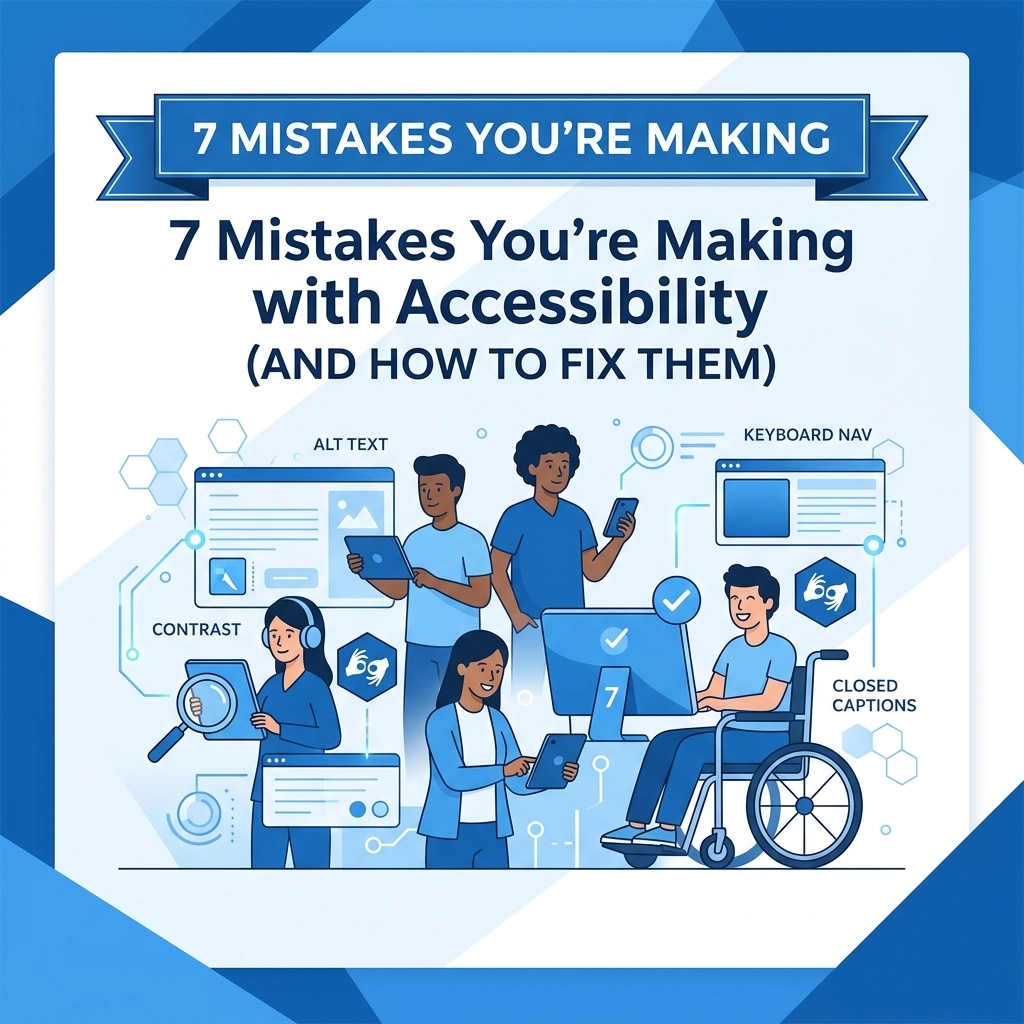

Accessibility is no longer a luxury in web design. It is a fundamental requirement. Many businesses view accessibility as a checklist for a small group of users but it actually impacts everyone. If your site is hard to navigate for someone with a visual impairment it is likely hard to navigate for a user on a mobile device in bright sunlight.
At WorldWise we see many common errors that hurt user experience and search engine rankings. Search engines prioritize sites that are easy to crawl and understand. Accessible sites are inherently better for SEO. If you want to reach the widest possible audience you need to fix these seven common mistakes
1. Low Color Contrast
This is the most common accessibility error found on the web. Text that is too light against a light background or too dark against a dark background is unreadable for many people. This includes users with color blindness low vision or even just someone using an older monitor
The Problem
Designers often choose low contrast for a "minimalist" aesthetic. While it might look sleek it renders your content useless if people cannot read it. Automated tests show that over 80% of homepages fail basic contrast requirements
The Fix
Use a contrast checker tool to ensure your text meets WCAG AA standards. This generally means a contrast ratio of at least 4.5:1 for normal text and 3:1 for large text. If you are aiming for higher accessibility go for AAA standards which require 7:1. Adjust your brand colors slightly to ensure readability without sacrificing your visual identity

2. Missing or Meaningless Alt Text
Images help tell your brand story but screen readers cannot "see" them. They rely on the alt text attribute in your HTML to describe the visual content to the user
The Problem
Many sites leave alt text blank or use automated file names like "IMG_5678.jpg" which provides zero value. Some developers over-optimize by stuffing alt text with keywords which ruins the experience for people using assistive technology
The Fix
Write descriptive alt text that explains the function or content of the image. If an image is purely decorative like a background flourish use an empty alt attribute alt="" so screen readers know to skip it. For informative images be specific. Instead of saying "chart" say "Bar chart showing a 20% increase in conversion rates over Q4"
3. Relying on Placeholder Text Instead of Labels
Forms are the primary way users interact with your business. If your forms are inaccessible you are losing leads and customers
The Problem
A popular design trend is to remove field labels and use placeholder text inside the input box instead. When a user starts typing the placeholder disappears. This creates a significant cognitive load for users who might forget what the field was for. Screen readers also frequently fail to announce placeholder text correctly
The Fix
Always use the <label> tag for every form input. This ensures the label stays visible at all times. If you want a clean look you can use CSS to hide the labels visually while keeping them available for screen readers but having visible labels is always the best practice for usability. You can learn more about our approach to functional forms on our Web Design page

4. Poor Keyboard Navigation
Not everyone uses a mouse. Many users rely on keyboards or other assistive devices to navigate a website. If they cannot "tab" through your site they will leave
The Problem
Custom elements like buttons made out of <div> tags often lack the necessary code to be focusable via a keyboard. Another issue is "focus trapping" where a user gets stuck in a menu or a pop-up and cannot get back to the main content
The Fix
Test your site by using only the Tab key. You should be able to reach every link button and form field in a logical order. Ensure there is a clear visual "focus state" like an outline so the user knows where they are on the page. Use native HTML elements like <button> and <a> because they have keyboard support built-in by default
5. Non-Descriptive Link Text
Links are the pathways of your website. If the paths are not clearly marked users get lost
The Problem
Using phrases like "Click Here" or "Read More" provides no context. A screen reader user can generate a list of all links on a page to navigate quickly. If that list is just "Read More" repeated ten times they have no idea where each link leads
The Fix
Make your link text descriptive. Instead of "Click here" use "Download our Capabilities Statement" or "View our portfolio" to see our work. This tells the user exactly what to expect when they click and provides a nice boost to your internal linking strategy for SEO

6. Incorrect Heading Hierarchy
Headings are not just for making text big and bold. They provide a structural outline of your content
The Problem
Many people choose heading levels (H1 through H6) based on how they look rather than how they function. Skipping levels: such as going from an H1 directly to an H4: confuses screen readers and search engines. It breaks the logical flow of information
The Fix
Use headings in a nested order. Every page should have exactly one H1 that describes the main topic. Subsections should use H2s and further sub-points should use H3s. If you don't like the size of a specific heading level use CSS to change the font size rather than changing the HTML tag. A clean structure helps our marketing strategy by ensuring search engines index your content correctly
7. Using Color Alone to Convey Meaning
Color is a great way to highlight information but it should never be the only way
The Problem
If you mark an error in a form by simply turning the text red users with red-green color blindness may not see the change. If a link is only distinguished from body text by its color someone with low vision might miss it entirely
The Fix
Always use a secondary indicator. For form errors add an icon or a text label that says "Error." For links ensure they are underlined or have a distinct weight change in addition to the color difference. This ensures that the information is accessible regardless of how the user perceives color

Why Accessibility Matters for Your Business
Fixing these mistakes is not just about compliance. It is about reaching the largest possible audience. When a site is accessible it is faster easier to use and more likely to convert visitors into customers. Poor accessibility is essentially a "keep out" sign for a significant portion of the population
At WorldWise we specialize in creating high-performance websites that work for everyone. From custom web design to comprehensive digital marketing we ensure your online presence is inclusive and effective. If you are concerned that your site might be making these mistakes we can help
We suggest starting with a full audit of your current digital assets. You can find more information about our services on our main website or reach out to us directly through our contact page to discuss your project
Accessibility is a journey rather than a destination. Web standards evolve and your site should too. By addressing these seven common errors you are building a stronger foundation for your brand and a better experience for every user who visits your site