

Picture this: you walk into your office Monday morning and your server won't boot up. Your customer database? Gone. Your financial records? Vanished. That project you've been working on for months? Lost forever.
Sound like a nightmare? It happens to businesses every single day.
The good news is that data loss is almost entirely preventable. You just need a solid backup strategy. Let's break down everything you need to know about protecting your business data without getting too technical or complicated.
What Exactly Is Data Backup?
Data backup is simply making copies of your important business information and storing them somewhere safe. Think of it like photocopying important documents and keeping them in a fireproof safe: except we're talking about digital files.
When something goes wrong: whether it's a hard drive failure, a ransomware attack, an employee accidentally deleting files, or even a natural disaster: you can restore your data from those backup copies and get back to business.

What Data Should You Actually Back Up?
Not all data is created equal. You don't need to back up everything with the same level of intensity.
Start by identifying your mission-critical data:
- Customer information and contact lists
- Financial records and invoices
- Employee records and payroll data
- Business documents and contracts
- Project files and work in progress
- Email communications
- Website files and databases
Do a data audit. Figure out what you have, where it lives, and what would hurt most to lose. Then prioritize your backups accordingly. Your customer database probably needs daily backups, while that folder of old marketing materials from 2015 can wait.
How Often Should You Back Up Your Data?
Here's the simple truth: the more frequently you back up, the less data you lose when something goes wrong.
Think about it this way: if you back up once a month and your system crashes, you could lose up to 30 days of work. But if you back up daily, you only lose one day max.
Common backup schedules:
- Critical servers: hourly backups
- General business data: daily backups
- Less critical files: weekly backups
The right frequency depends on your business. Ask yourself: how much data loss can we afford? If losing even a few hours of customer orders would be devastating, you need frequent backups. If you could handle losing a day or two of work, daily backups work fine.
Whatever schedule you pick, automate it. Don't rely on someone remembering to manually back up files every day.
The 3-2-1 Backup Rule You Need to Know
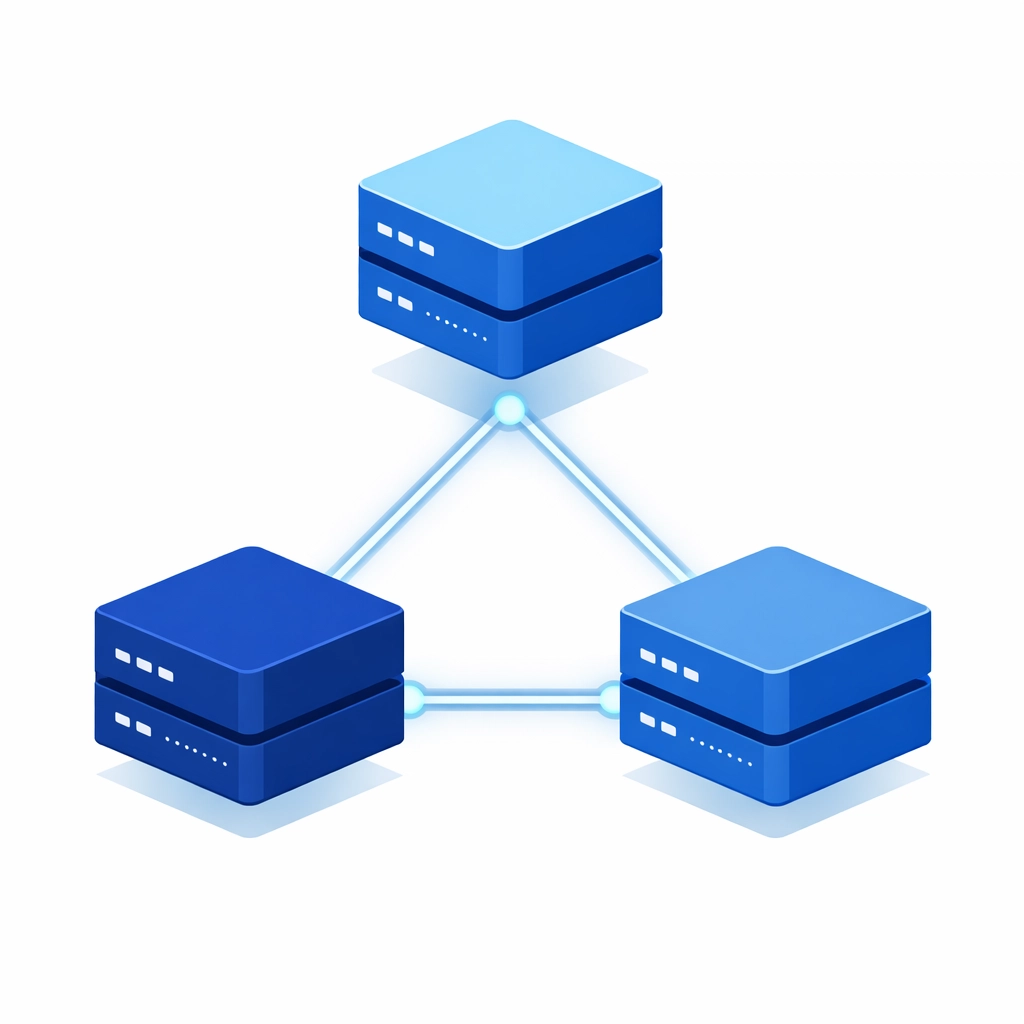
This is the gold standard of backup strategies. It's dead simple:
Keep 3 copies of your data, on 2 different types of storage media, with 1 copy stored off-site.
Here's what that looks like in practice:
- Copy 1: Your original working files
- Copy 2: A local backup on an external hard drive or network storage
- Copy 3: An off-site backup in the cloud or at another physical location
This approach creates multiple layers of protection. If your office floods, you've got cloud backups. If your cloud provider has an outage, you've got local backups. It makes it really hard for everything to go wrong at once.
Where Should You Store Your Backups?
Using multiple storage locations is key. Here's why relying on just one location is risky:
Local backups only: Fast to access and restore, but vulnerable to physical disasters. A fire or flood that destroys your office also destroys your backups.
Cloud backups only: Protected from physical disasters, but slower to restore large amounts of data. Plus, you're entirely dependent on your internet connection and the cloud provider staying operational.
The smart approach: Use both. Keep local backups for quick recovery from everyday problems like accidental deletions. Store cloud backups for protection against major disasters.
Many businesses work with managed IT support providers to handle this hybrid approach automatically. It takes the guesswork and technical work off your plate.
How Long Should You Keep Backups?
Your retention schedule depends on your business needs and any compliance requirements you might have.
A reasonable retention schedule looks like this:
- Daily backups: Keep for two weeks
- Weekly backups: Keep for one month
- Monthly backups: Keep for three months or longer
Some industries require keeping certain data for years. If that applies to you, cloud storage makes long-term retention much easier and cheaper than keeping physical drives.
Protecting Your Backups From Hackers
Here's something people forget: your backups themselves need protection. What good is a backup if hackers can encrypt it along with your original data?
Essential security measures:
- Encrypt everything: Both when transferring data and when it's sitting in storage
- Use multi-factor authentication: Don't let someone access your backup system with just a password
- Consider immutable backups: These can't be altered or deleted, even by ransomware
- Separate backup credentials: Don't use the same admin credentials for backups and your main network
Cybersecurity and backups go hand-in-hand. One protects you from getting hacked in the first place, the other protects you if the hackers get through.
Test Your Backups Regularly
This is where most backup strategies fall apart. People assume their backups are working fine until disaster strikes and they discover the backups are corrupted or incomplete.
Testing doesn't have to be complicated:
- Once a quarter, try restoring a few random files
- Once a year, do a full restore test of your entire system
- Use monitoring tools that alert you if backups fail
Think of it like a fire drill. You're practicing the recovery process so when a real emergency happens, you know exactly what to do and everything actually works.
Automate Everything You Can
Manual backups fail. Someone forgets. Someone's on vacation. Someone gets busy and skips it "just this once."
Automation solves this problem. Set it up once and it runs like clockwork:
- Backups happen on schedule without anyone needing to remember
- You can schedule backups for off-peak hours so they don't slow down your network
- Automated alerts tell you immediately if something goes wrong
- Recovery testing can even be automated
Most modern backup solutions include built-in automation. Use it.
Getting Started With Your Backup Strategy
If you don't have a backup system in place right now, don't panic. Start simple:
- This week: Identify your most critical data
- Next week: Set up automated daily backups to an external drive
- Following week: Add cloud backup for off-site protection
- Ongoing: Test your backups quarterly and adjust your strategy as needed
You don't need to build the perfect system overnight. Start with something basic and improve it over time.
The Bottom Line
Data backup isn't sexy or exciting, but it's absolutely essential for protecting your business. Hardware fails. Employees make mistakes. Hackers attack. Natural disasters happen.
The question isn't whether you'll face data loss: it's whether you'll be prepared when you do.
A solid backup strategy combining frequent backups, multiple storage locations, strong security, and regular testing gives you peace of mind. When disaster strikes, you'll recover quickly instead of scrambling to recreate everything from scratch.
Need help setting up a backup system that actually works? Get in touch with us and we'll help you build a strategy that fits your business and budget. Because protecting your data shouldn't keep you up at night.