
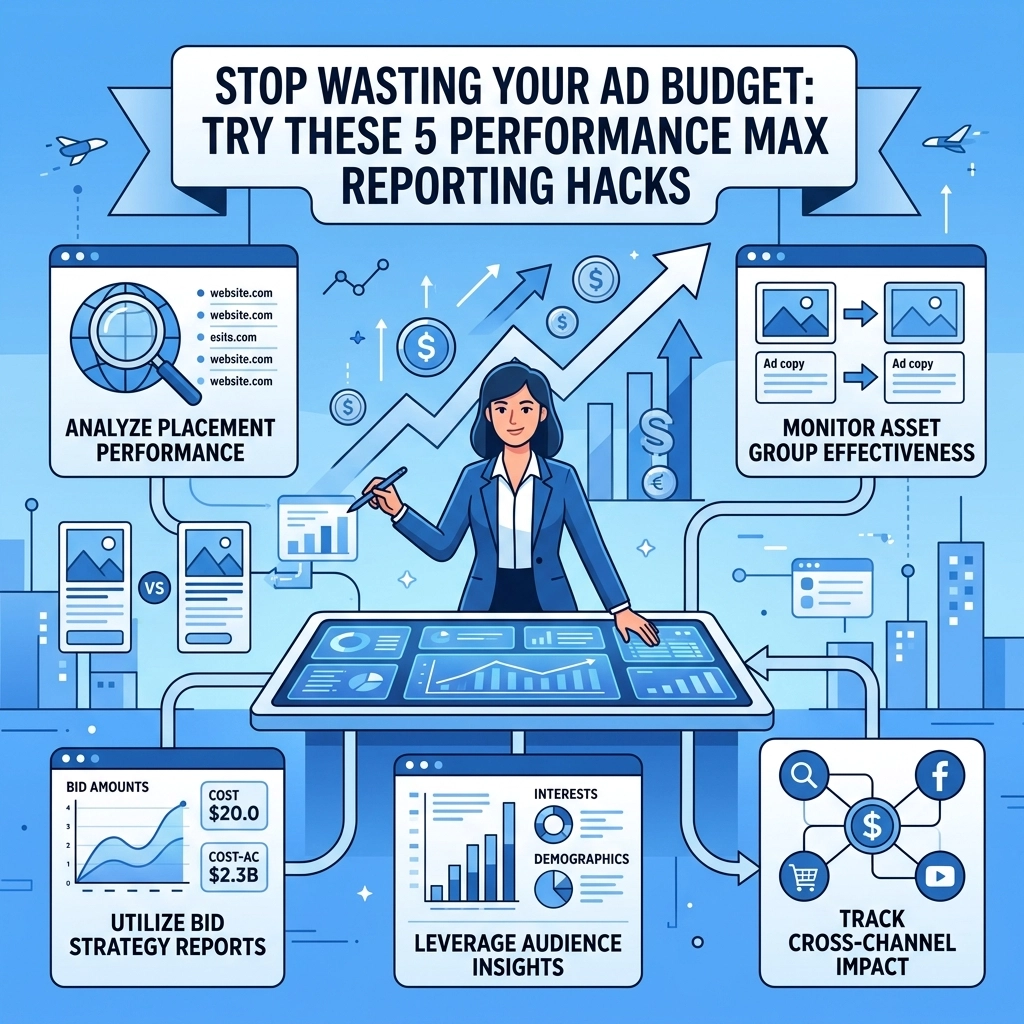

Performance Max campaigns are often described as a "black box" for advertisers. You provide the assets and the budget, and Google uses its algorithm to decide where your ads appear across Search, YouTube, Display, Discover, Gmail, and Maps. While this automation can drive results, it also makes it very easy to waste money on low-quality traffic. Most business owners see the total spend but have no idea which channel is actually driving the conversions.
If you want to protect your margins, you need better data. You cannot optimize what you cannot see. These five reporting hacks will give you the visibility needed to stop the "black box" from draining your bank account.
Hack 1: Calculate your exact spend distribution
Problem identified: Google hides how much money is spent on Shopping versus Video or Display within a single PMax campaign
The biggest frustration with Performance Max is the lack of a channel-level spend breakdown. You might think your budget is going toward high-intent Shopping ads, but Google might be spending 40% of it on YouTube "shorts" or junk Display placements that do not convert.
Suggested action: Use the "Campaign Type" filter trick
To find where your money is going, follow these steps:
- Navigate to the "Reports" icon in your Google Ads dashboard
- Choose "Custom" and then create a "Table"
- Add "Campaign" as your row and "Cost" as your column
- Apply a filter to only show your Performance Max campaign
- Add a segment for "Click Type"
This will not give you a perfect 1:1 breakdown of every penny, but it reveals the spend on "Product Shopping Ads" versus other interactions. If your Shopping spend is low but your total cost is high, Google is likely pushing your budget into Video or Display. If those channels aren't converting, you are wasting money. You should revisit your marketing strategy to ensure your asset groups aren't accidentally favoring low-performing channels

Hack 2: Audit the Placements Report for junk traffic
Problem identified: Your ads are appearing on irrelevant mobile apps and low-quality websites
By default, Performance Max loves to serve ads on mobile games and "made-for-ads" websites because the impressions are cheap. For most professional services or e-commerce brands, these placements are useless. They lead to accidental clicks from people playing games or browsing spammy content.
Suggested action: Run the PMax Placements Report and apply exclusions
You need to see where your ads are actually showing:
- Go to "Reports" in the top menu
- Select "Predefined reports (Dimensions)"
- Navigate to "Other" and click "Performance Max placements"
- Sort by "Impressions" or "Cost"
Look closely at the list. If you see hundreds of mobile apps like "Subway Surfers" or "Flashlight App," you are paying for junk. You cannot exclude these directly within the campaign settings in the same way you do with standard Display campaigns. Instead, you must go to the "Account Settings" level and add these apps or domains to your "Placement Exclusion Lists." Doing this at the account level ensures that your PMax campaign respects those boundaries.
Hack 3: Use custom reports to segment by brand and category
Problem identified: You cannot tell which product categories are dragging down your overall campaign ROAS
Performance Max often aggregates data too much. It might tell you that your campaign has a 4.0 ROAS, but that could be because one product category is doing a 10.0 while three others are doing a 0.5. Without segmenting this data, you keep spending money on the losers while starving the winners.
Suggested action: Build custom tables using data feed labels
If you are running a retail-focused PMax campaign, your data feed is your best friend.
- Create a new custom report
- Add "Custom Label" (from your Merchant Center feed) or "Product Category" to the rows
- Add "Cost," "Conversions," and "ROAS" to the columns
- Analyze which specific groups are underperforming
If you find that a specific brand or category has a high cost but zero conversions over 30 days, remove it from the PMax asset group. Move those products to a separate campaign or stop bidding on them entirely. For small businesses, focusing on a few high-performers is usually the best marketing strategy to maintain profitability

Hack 4: Visualize asset performance with external scripts
Problem identified: The "Asset Details" tab only gives vague labels like "Good" or "Best"
Google's built-in asset reporting is notoriously unhelpful. Seeing that a headline is "Best" doesn't tell you how many conversions it actually generated. It only tells you how the algorithm feels about it compared to other headlines. This lack of hard data makes it impossible to write better copy or choose better images.
Suggested action: Install a Performance Max script for deep insights
There are several free, reputable Google Ads scripts available online that pull PMax data into a Google Sheet. These scripts can do things the standard interface cannot:
- Map spend to specific asset groups
- Show the actual click-through rate (CTR) for specific headlines
- Provide a timeline of when performance shifted
By visualizing this data in a spreadsheet, you can see if a sudden drop in performance was caused by Google favoring a new, unproven image asset. Once you identify the weak asset, replace it immediately. Professional digital marketing requires making decisions based on numbers, not vague labels like "Low" or "Pending."
Hack 5: Force negative keywords through the Support Loophole
Problem identified: PMax is bidding on your own brand name or irrelevant search terms
If you are already running a Search campaign for your brand name, you do not want Performance Max stealing that traffic. PMax will often "cannibalize" brand traffic because it is an easy way for the algorithm to show a high ROAS. This makes the campaign look better than it actually is while you pay more for clicks you would have gotten anyway.
Suggested action: Request a brand exclusion list or use Google Support
There are two ways to handle this:
- Brand Exclusions: Check the "Settings" of your PMax campaign. Google has recently started rolling out a "Brand Exclusions" feature. Create a list of your brand terms and apply it.
- The Support Request: If the brand exclusion tool isn't available or if you need to block non-brand "junk" keywords, you must contact Google Support. Send a message to your account representative or the general support chat with a specific list of negative keywords. Ask them to apply this list as a "Campaign Level Negative Keyword List" to your specific Performance Max campaign.
By removing these terms, you force the algorithm to go out and find new customers, which is what you are actually paying for.

Summary of actions
To stop wasting your budget, stop trusting the default dashboard. The automation in Performance Max is powerful, but it needs guardrails.
- Check your spend split to ensure you aren't overpaying for junk Video views
- Clean up your placements list at least once a week
- Break down performance by product category to kill the losers
- Use scripts to get the real numbers behind your creative assets
- Block brand terms and irrelevant keywords through support requests
If you need help setting up these reports or optimizing your overall digital presence, you can get started with a professional audit. Consistent reporting is the only way to ensure your ad spend actually turns into profit.